

The Downloads folder is a front porch, not a permanent archive. Files arrive there because a browser, message, form, or application needed somewhere fast to place them. Trouble starts when the porch becomes the only storage system.
This reset gives every relevant file one of four exits without requiring you to organize your entire computer.
Set the boundary before opening files
Choose one boundary:
- the newest 30 files;
- everything downloaded in the last seven days;
- one file type, such as PDFs or installers;
- 15 minutes, stopping when the timer ends.
Use the newest-first view when current work is the risk. Use size or type when storage is the risk. Do not scroll to the oldest file merely because it exists.
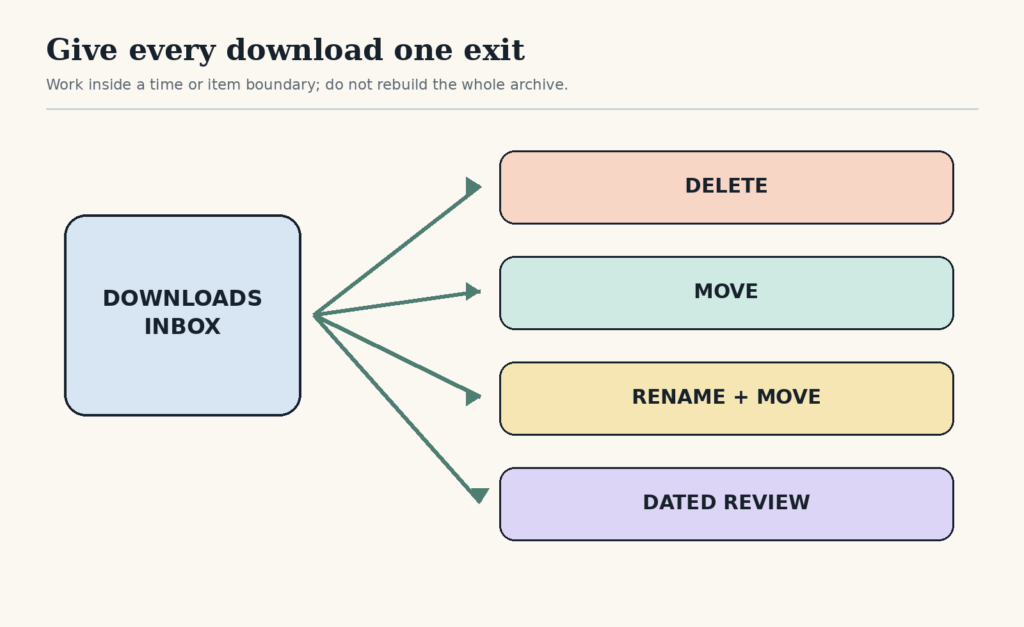
Give each file one exit
- Delete: duplicates, failed downloads, expired installers, and files you can safely obtain again.
- Move: a clearly named file that already has a useful home.
- Rename and move: a file worth keeping whose current name will not support retrieval.
- Leave until review: a file connected to an unresolved task, with a dated review point.
Do not create a fifth outcome called “look at later” without a date or trigger. That simply rebuilds the same folder under a different name.
Delete without investigating every mystery
Use visible evidence first: filename, type, size, download date, and known source. If deletion could remove an important record, open the file or move it to a bounded review folder. If the file is an application or executable, do not open an unknown file merely to identify it; use your operating system’s security guidance and remove suspicious material through the appropriate safe process.
Duplicates often reveal themselves through numbered suffixes such as (1) or repeated names. Confirm that the files are actually the same before deleting when the content matters.
Use the smallest useful folder tree
Move files to a folder you can predict, not the most detailed category you can invent. A practical small structure might include:
- Active Projects;
- Personal Records;
- Work Reference;
- Media;
- Archive by year.
Add subfolders only when browsing or search is actually failing. A three-level taxonomy does not improve a folder that contains six files.
Rename only for future retrieval
Files such as document.pdf, download-7.pdf, or a long machine-generated string may deserve a clearer name before moving. Use subject, useful date, and state only when those parts distinguish the file. The simple file-naming guide provides a compact pattern and examples.
The National Archives advises organizations to use descriptive, consistent, meaningful conventions and stable positions for components such as dates or versions. Its rules are designed for records transfer, not ordinary personal downloads, but the retrieval principle is useful. See the official guidance.
Handle files attached to unfinished work
If a downloaded file exists because a task is blocked, record the task state outside the Downloads folder. For example:
Reimbursement — receipt downloaded — waiting for manager approval — follow up 20 August — then submit form.
Move the receipt to its project or records folder and put the dependency on a dated waiting list. Leaving the file in Downloads is not a reliable reminder.
Example: a 15-minute current-work reset
Sam sorts Downloads by newest. The first 30 items contain two duplicate tickets, three images used in a finished presentation, four bank statements, a software installer, and files for an active housing application.
Sam deletes the duplicate tickets after confirming the originals, moves the presentation images to its archive, renames the statements by month and moves them to Personal Records, deletes the installer after confirming the application is installed and the official source is known, and moves the housing files into one active-project folder. One missing reference becomes a waiting-list item. The timer ends with old files still present, but current work is safe and findable.
Choose a maintenance trigger
Do not promise a daily cleanup unless downloads create daily risk. Use a trigger that matches the flow:
- after submitting a project;
- before a weekly digital close;
- when the folder reaches a visible item or size threshold;
- after a period of forms, travel bookings, or research.
The reset is complete when current files have safe homes, unresolved items have dates, and you can download the next file without adding it to a mystery pile.
Free GentleDone resource
Overwhelmed? Start with 10 minutes.
The GentleDone 10-Minute Reset gives you one deliberately small place to begin.