
Digital clutter rarely stays in one place. An email becomes a task. The task needs a downloaded file. The file receives three names. A notification interrupts the work, and the unfinished item remains open in a tab. Each tool is functioning, but the handoffs between them are not.
Digital calm is not an empty inbox, a perfect folder tree, or a phone with no alerts. It is a small set of visible intake and exit points: where new things arrive, where decisions are recorded, where files become findable, and when communication returns to your attention.
Build four reliable routes
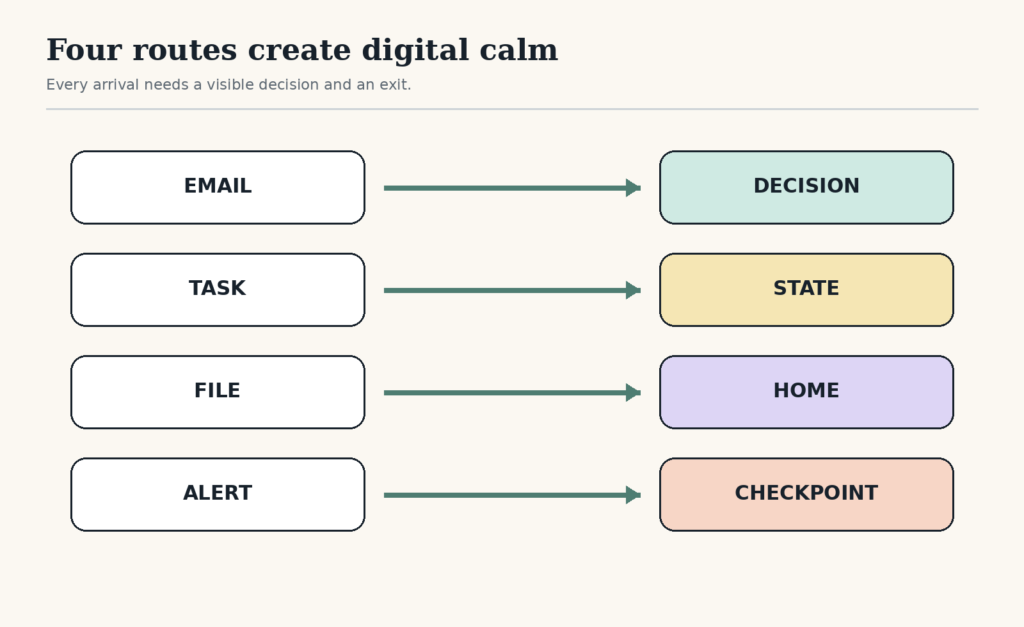
- Inbox to decision: decide what an incoming item means before moving it.
- Task to state: mark active, waiting, scheduled, or finished.
- File to home: name it for retrieval and move it to the smallest useful folder.
- Alert to checkpoint: let urgent exceptions through and review the rest at chosen times.
Each route needs an exit. Without one, the email remains starred, the task stays in your head, the download stays in a temporary folder, and the alert continues to ask for attention.
Route email by the decision it requires
Do not begin by clearing the whole inbox. Find items with a real consequence, then choose one of four outcomes:
- Act: complete a genuinely short response now.
- Schedule: put substantial work on a task or calendar with a next action.
- Wait: record who or what must happen next and when you will follow up.
- Reference: keep information that you expect to retrieve, in a named place.
The email may remain in the mailbox if your search and labels work. What matters is that it no longer has to act as an ambiguous reminder. When the inbox is already crowded, use the email triage guide to identify risk before attempting cleanup.
Separate active work from waiting
A blocked task should not sit among actions you can perform now. Move it to a waiting list with four fields: item, owner or trigger, next follow-up date, and the action that becomes available when the wait ends.
For example: “Lease renewal — waiting for Jordan’s signature — follow up 19 Aug — then upload signed PDF.” The item is not forgotten, but it no longer competes with available work. The Waiting List guide shows how to keep blocked work visible without rereading it all day.
Name files for retrieval, not autobiography
Use only the parts that help you find and distinguish the file: a subject, a useful date when time matters, and a state or version when confusion is likely. Examples:
lease-renewal-2026-signed.pdfvendor-pricing-2026-08.xlsxteam-retro-decisions.md
The U.S. National Archives recommends descriptive, consistent, meaningful naming conventions and keeping components such as dates or versions in consistent positions. Its transfer rules are stricter than most personal systems need, so do not copy every archival requirement blindly. The useful principle is consistency that supports retrieval. See the NARA file-naming guidance.
Use the simple file-naming system to choose a compact pattern and test it against real searches.
Treat Downloads as an intake tray
The Downloads folder is not a moral problem. It is a temporary intake area. Give each item one of four exits: delete, move, rename and move, or deliberately leave until a dated review.
Work newest first when you need recent files. Work by type when duplicates or installers are consuming space. Stop after the files connected to current work are safe. The Downloads Folder Reset provides a bounded route that does not require rebuilding your archive.
Replace most alerts with checkpoints
Research has found that phone notifications can disrupt performance on an attention-demanding task even without direct interaction. Another experimental study found lower reported stress when participants checked email less frequently during the study period. Neither study proves that everyone should use the same schedule, and some roles require continuous availability. They do support questioning whether every arrival needs an immediate banner. Read the notification study and the email-checking study.
Start with three alert classes:
| Class | Delivery | Examples |
|---|---|---|
| Immediate | Allowed to interrupt | Safety, care, outage, hard same-day consequence |
| Checkpoint | Silent arrival; review at named times | Email, team questions, shipping updates |
| Pull only | No alert; open when needed | News, promotions, social activity |
Turn Notifications Into Scheduled Checkpoints shows how to make exceptions explicit without losing every alert.
Run one 20-minute digital closing route
- Find the one email or message with the nearest real consequence.
- Move blocked work to the waiting list with a follow-up date.
- Move the files used today out of Downloads and name only what needs retrieval.
- Write the next action in the active document.
- Set the next communication checkpoint and close the inbox.
Stop when the current work has a trustworthy state. Do not continue into old archives unless they are blocking something now.
Repair the handoff that keeps leaking
If you repeatedly search for files, repair naming or folder placement. If blocked tasks keep returning to your active list, repair the waiting route. If the inbox controls the day, repair alert delivery and checkpoint timing. If every system exists but nothing closes, repair the exit: send, schedule, file, delete, or write the next action.
Digital calm is not a visual style. It is the experience of knowing where an item goes next—and trusting that it will return when it deserves attention.